How to encrypt an external USB drive using BitLocker (Windows 8, 10, 11)
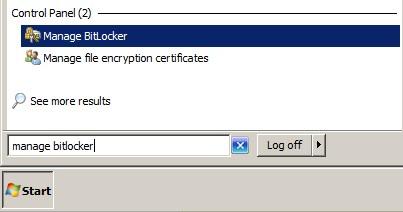
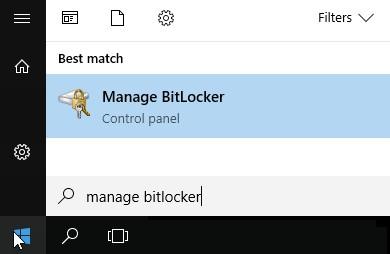
Insert the USB drive. Click on the Start menu, type “Manage Bitlocker” in the search box, click ‘Manage Bitlocker’.
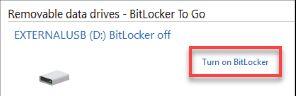
Locate your USB drive under Removable data drives, and click ‘Turn on BitLocker’.
- Select the Enter a password, then enter and verify a password to access the drive.
- Make sure that this password is something which you will remember.
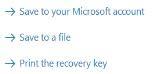
Choose to save or print your recovery key (whatever makes the most sense for you).
- Select ‘Encrypt entire drive’, click ‘next’, and choose ‘Compatible mode’.
- The drive will now encrypted. Once the dialogue box reaches 100%, the drive is ready to be removed and used elsewhere.
Go Further...
- BitLocker (and BitLocker-to-Go) for Dummies (ZDNet)
- BitLocker Drive Encryption Overview (Microsoft)