MFA on VPN

Multi-factor Authentication Required for myVPN Starting July 22, 2024 - Learn More

Encrypt an external USB drive using FileVault

How to encrypt an external USB drive using FileVault

Note that drives encrypted on a Mac cannot be accessed on Windows.

  1. Insert the USB drive
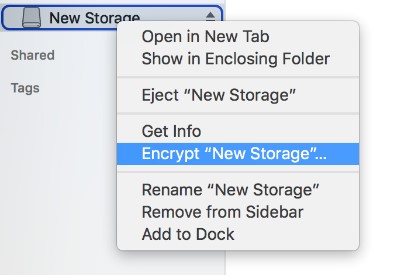
  2. Control-click (or right-click if available) the USB drive icon that appears and choose 'Encrypt "Device Name"' from the menu (as below)
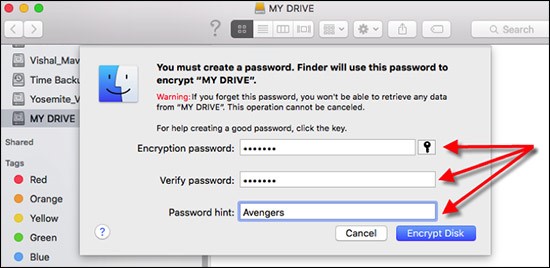
  3. Enter and verify a password. Make sure that this password is something which you will remember. Once you have entered a password hint, then click Encrypt Disk (this may take some time)
Additional Resources


UBC Crest The official logo of the University of British Columbia. Urgent Message An exclamation mark in a speech bubble. Caret An arrowhead indicating direction. Arrow An arrow indicating direction. Arrow in Circle An arrow indicating direction. Arrow in Circle An arrow indicating direction. Chats Two speech clouds. Facebook The logo for the Facebook social media service. Information The letter 'i' in a circle. Instagram The logo for the Instagram social media service. Linkedin The logo for the LinkedIn social media service. Location Pin A map location pin. Mail An envelope. Menu Three horizontal lines indicating a menu. Minus A minus sign. Telephone An antique telephone. Plus A plus symbol indicating more or the ability to add. Search A magnifying glass. Twitter The logo for the Twitter social media service. Youtube The logo for the YouTube video sharing service. Bell Warning